Captions On or Off? Choose by the Job
Captions on or off depends on the viewing job: choose a setting that supports speech comprehension without crowding the image you need to see.
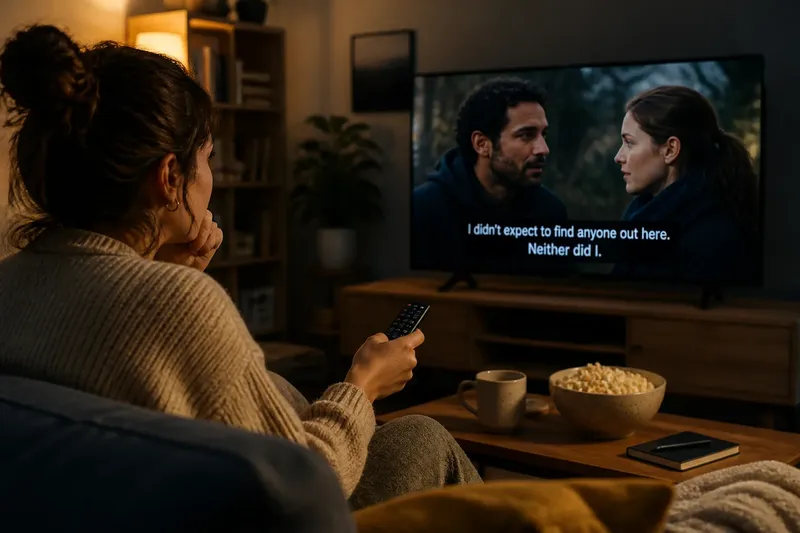
The common mistake with captions is treating “on” or “off” as a permanent preference. That can make a quiet scene harder to follow when dialogue is faint, or keep your eyes pinned to text when a face or gesture carries the point. For captions on or off, choose by the job in front of you: understanding speech, studying an image, sharing a room, or following a fast exchange.
Name the viewing job
Before changing a setting, say what you need from this viewing. Are you following a plot, learning a process, comparing visual details, or watching while other people are talking nearby? The answer matters more than whether captions are generally useful to you.
Captions can make speech easier to track when dialogue is soft, an accent is unfamiliar, or several speakers overlap. They can also identify who is speaking and describe meaningful sounds. But text occupies part of the screen, and reading it takes attention. The image may continue changing while your eyes are down.
Start with one of these jobs:
- Follow the dialogue: Turn captions on when words are central and hard to catch by ear.
- Read the image: Try them off when small visual clues, subtitles within the scene, or action near the bottom edge matter.
- Share a room: Use captions when sound needs to stay low or the room is noisy.
- Study speech: Keep captions available when you are learning unfamiliar vocabulary or comparing a spoken phrase with its wording.
These are starting points, not rules. A documentary interview and a dialogue-free montage ask different things of your attention, even on the same screen.
Check the caption type
“Captions” can mean different text. Closed captions are usually a selectable track and may include speaker labels and descriptions such as a door closing. Subtitles often focus on spoken words; translated subtitles render dialogue in another language. Platforms do not use these labels consistently, so look at the track names and sample a moment before settling in.
If you need speech descriptions, choose a track that includes sound cues. A line of dialogue alone may not tell you that a speaker is whispering, that someone off-screen has answered, or that a phone is ringing. If you only need translation, a cleaner subtitle track may leave more of the image visible.
Turn on the track, then inspect its behavior. Does it identify speakers clearly? Does it include relevant sounds? Are the lines synchronized with speech, or do they appear so early or late that they pull attention away? If the platform offers several tracks, switch between them briefly rather than assuming the first option fits.
Choose a screen position
Captions usually sit along the lower edge, a busy place for film and television. A face may be framed there; hands may demonstrate a task; a game interface may put prompts or status information in the same strip. On a phone, the text can take up a larger share of the visible picture than it does on a television across the room.
When settings allow, adjust position, size, background, or text contrast. Make the text readable without turning it into the largest visual object. A solid background can help against a bright or patterned scene, while a translucent one may leave more image visible. If captions cover information that matters, try another position or reduce the size before deciding to turn them off.
Also check for text already inside the picture. A street sign, a name card, a message on a phone, or a label in a demonstration may appear where captions sit. If both texts compete, pause long enough to read the in-scene wording, move the caption placement if possible, or switch the track off for that passage.
Match captions to the room
Sound conditions can change from one viewing session to the next. A clear recording in a quiet room may be easy to follow without text. The same program can become difficult beside a kitchen fan, on public transit, or in a shared room where raising the volume would disturb someone.
Try captions before turning the volume up. This can preserve a comfortable listening level and make overlapping dialogue easier to parse. If the words remain unclear, check the player’s audio track and your device’s sound mode; a dialogue-focused option may help, but the label and effect depend on the service and equipment.
Captions are also a considerate choice when other people need quiet. Yet they are not automatically the best choice for everyone sharing the screen: one viewer may read quickly, while another may find text distracting. If you are watching together, ask what the group needs and make a quick adjustment rather than letting one person silently struggle.
Test the setting briefly
Give each option a short trial during a representative moment, not just the opening credits. Choose a scene with the kind of speech or imagery that made you uncertain. Watch a little with captions on, then replay or continue with them off. Notice what you understood and what you missed, rather than asking which setting felt more familiar.
Say you are watching a cooking demonstration on a tablet in a quiet kitchen. The presenter explains a technique while showing a small movement near the bottom of the frame. Captions help you catch an unfamiliar ingredient name, but they cover the hand action. You could keep captions on for the explanation, pause to read the ingredient, then switch them off while watching the movement. The useful result is a setting matched to each part of the task, not a victory for one mode.
If the controls are hard to reach, use the playback menu or accessibility settings before the program begins. Some services remember a choice across titles; others apply it only to the current player or profile. Check the next video rather than assuming the previous setting carried over.
When should captions stay on?
Should I use captions in a noisy room?
Usually, try them when background noise masks speech and raising the volume is inconvenient. If the picture contains crucial text or action in the caption area, adjust the display or switch tracks for that segment.
Do captions help with unfamiliar accents?
They can make wording easier to follow, especially when speakers overlap or use unfamiliar terms. If you are learning a language, compare the spoken phrase with the caption, while remembering that captions may simplify or rephrase dialogue.
Should captions be on for dialogue-heavy shows?
They are often useful when the story depends on exact lines, quiet speech, or rapid exchanges. Try a scene without them if you want to attend more closely to expression, timing, or a visual reaction.
Can captions distract from a film?
Yes, particularly when the frame contains important details near the bottom or the text arrives before the line is spoken. Changing the size or position may reduce the distraction; otherwise, turn them off for the visually demanding passage.
Make a scene-by-scene choice
You do not have to keep one setting for an entire title. A conversation may reward captions; a silent sequence may not need them; a scene with signs or on-screen messages may call for a temporary change. Use the player controls when the viewing job changes, then return to your preferred setting afterward if the service allows it.
When choosing captions on or off, treat the screen as a shared field of information. Captions make words visible, but they also claim space and direct the gaze. Check what the scene asks you to notice, what the room lets you hear, and whether the text adds information you need. That small check is enough to make the choice deliberate rather than automatic.